
Tool manual
How to use PMO4u, from the invitation to project closure. Start with Getting started, then go to the chapter for your role. If you hold more than one role, read more than one chapter.
Nothing found. Try another word, or write to us.
Getting started
Roles and what each one does
PMO4u brings the company's project portfolio together in one place: the request, the Project Charter, the approval and the execution, with risks, actions, deliverables, status reports, Kanban, schedule, finance and strategic objectives.
What you see and do depends on the roles in your membership with the company. Roles add up: the same person can be PMO and Project manager, for example.
| Role | What it's for |
|---|---|
| Administrator | Invites people, sets roles and departments, and takes care of the company details and SSO sign-in. Does not see projects just for being an Administrator. |
| PMO | Maintains the structure (portfolios and programs), reviews and approves charters, takes care of strategic objectives and suppliers, and follows all projects in their departments. |
| Project manager | Submits the request, fills in the charter and runs the project: participants, risks, actions, deliverables, status reports, Kanban, schedule and finance. |
| Director | Follows the projects in their departments, with everything in view, without changing anything. |
| Finance | Sees the finance and return of the projects in their departments, enters actual and paid amounts, and maintains suppliers. |
| Resource | Every member is one, even with no role checked. Sees the projects they take part in and updates their own actions, cards and tasks. |
Departments. PMO, Director and Finance work in the departments of their membership, or in "All". Anyone who manages or takes part in a project sees it in any department.
Accept the invitation
No one signs up on their own: access starts with an invitation from the company's Administrator. The link arrives by email or is handed over by the Administrator. It's valid for 7 days and can be used only once.
- Open the link. The screen shows the company and the invitation email.
- If this is your first access, fill in Set your password, with at least 6 characters. If you already have an account, fill in Confirm with your password.
- Click Accept invitation. You can also accept with Google, Microsoft, LinkedIn or your company account (SSO), when the installation has those options enabled.
- Go back to the sign-in screen and sign in with your email and password.
If you see "This link is not valid", it has expired or has already been used. Ask the Administrator for a new one.
Sign in
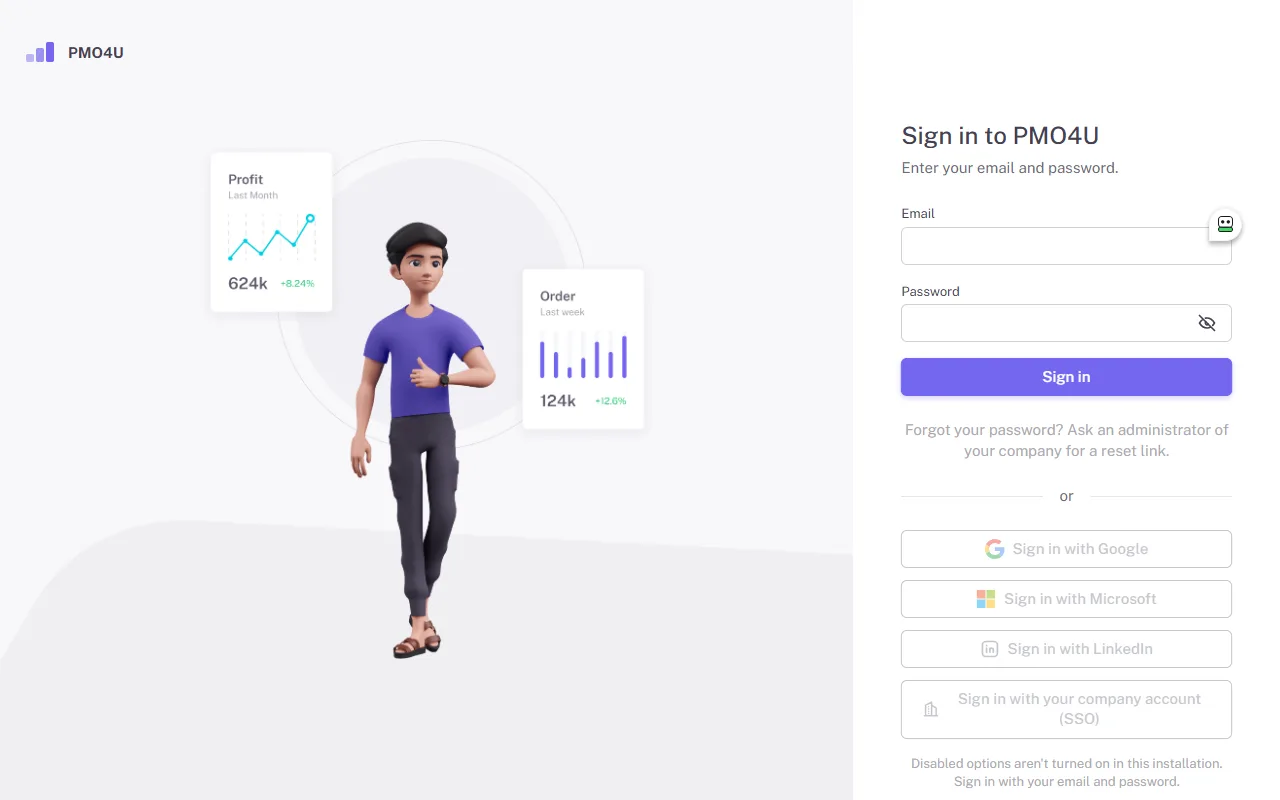
- Enter your Email and Password and click Sign in.
- Below "or" are Sign in with Google, Sign in with Microsoft, Sign in with LinkedIn and Sign in with your company account (SSO). An external account only works for people who have already been invited: it proves who you are, but does not create access.
- If your company requires SSO, signing in with a password is refused, except for Administrators.
- After 5 failed attempts, the account is locked for a few minutes.
- The session ends after 12 hours without use, or 7 days after sign-in.
Forgot password
When the installation sends email, the sign-in screen has the Forgot password link. Enter your email and click Send link. The link arrives in moments, is valid for 24 hours and can be used only once. A new request is only handled after 15 minutes.
Without email sending, ask the Administrator for a reset link. In the link, enter the New password and click Set password. This ends your other sessions.
The password has at least 6 characters, with no composition rules. Very common passwords, or ones with few different characters, are refused.
Active company
An account can have a membership in more than one company in the same installation, but works in one at a time. If you have only one, you go straight into it.
- With several, the "Choose a company" screen appears after sign-in.
- To switch later, use the company name, with the building icon, in the top bar.
- If you signed in through a company's SSO, you stay in that company until you sign out.
Menu and Home
The menu shows only what your role allows: Home, Dashboard, Projects and Structure for everyone; Objectives for PMO, Director and Manager; Suppliers for PMO and Finance; Administration for the Administrator.
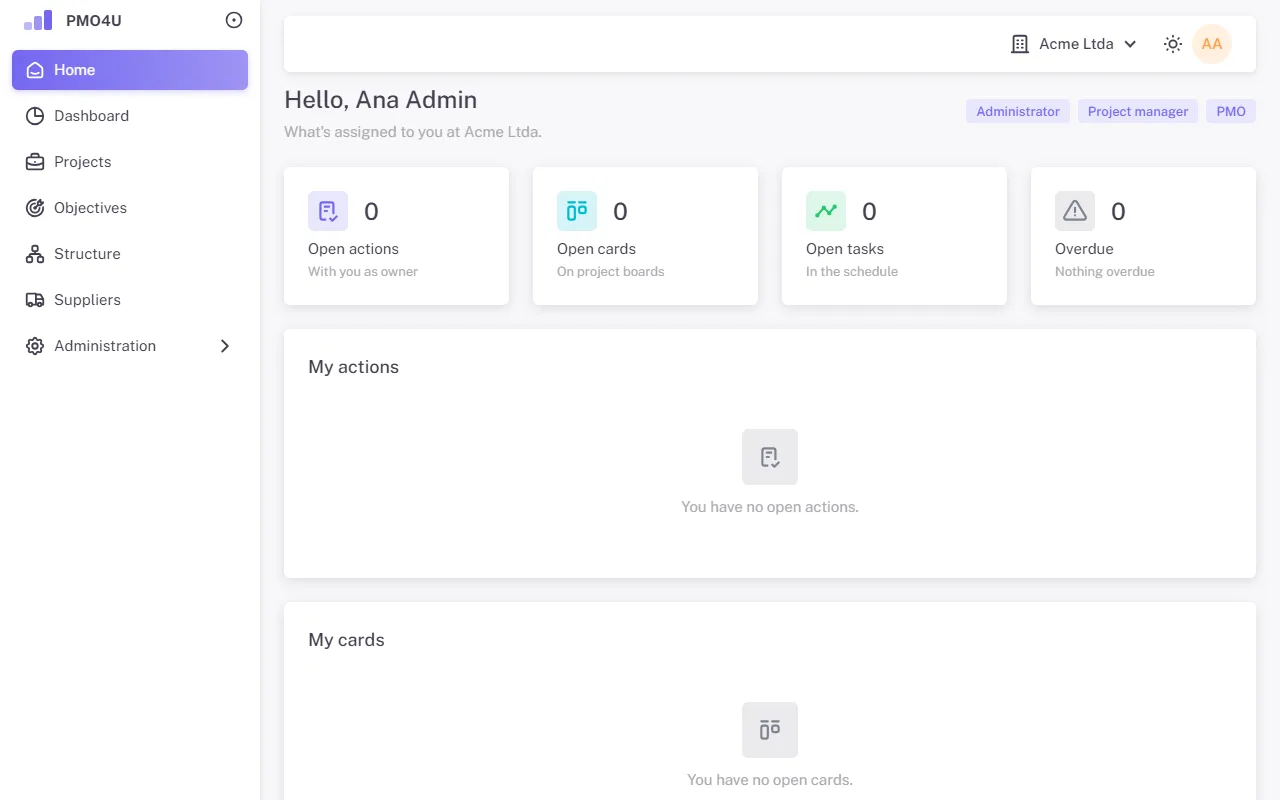
Home shows the "Open actions", "Open cards", "Open tasks" and "Overdue" tiles, and the "My actions", "My cards" and "My tasks" lists. You can change an action's progress and a task's percent right there, without opening the project.
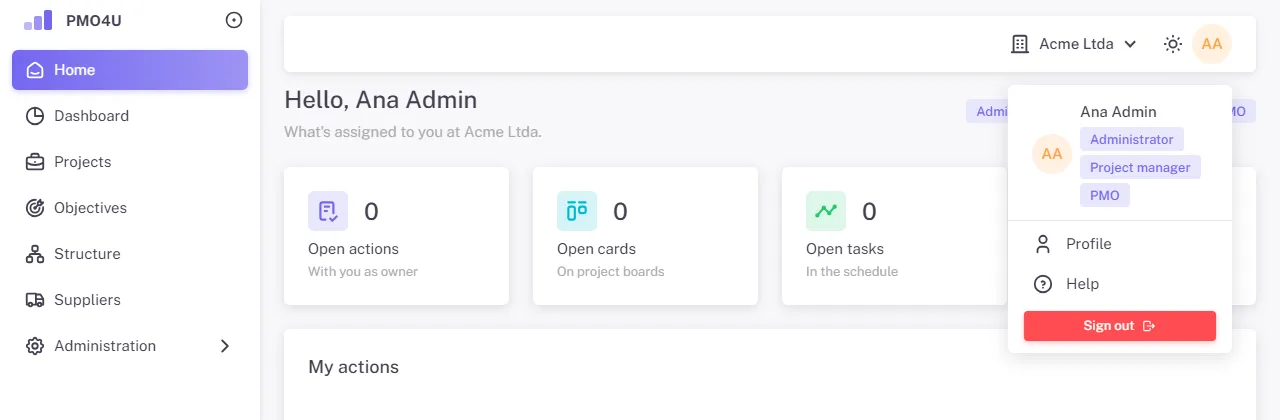
The account menu has Profile, Help (this manual) and Sign out. Next to it, the sun icon switches the mode between light, dark and system.
Profile and appearance
Profile has three tabs:
- Account: name, phone and the option to get a daily email summary of your overdue items.
- Security: change your password, which ends your other sessions, and Linked accounts. Link Google, Microsoft, LinkedIn or your company account to sign in with them, or unlink the ones you no longer use. The last remaining way to sign in cannot be unlinked.
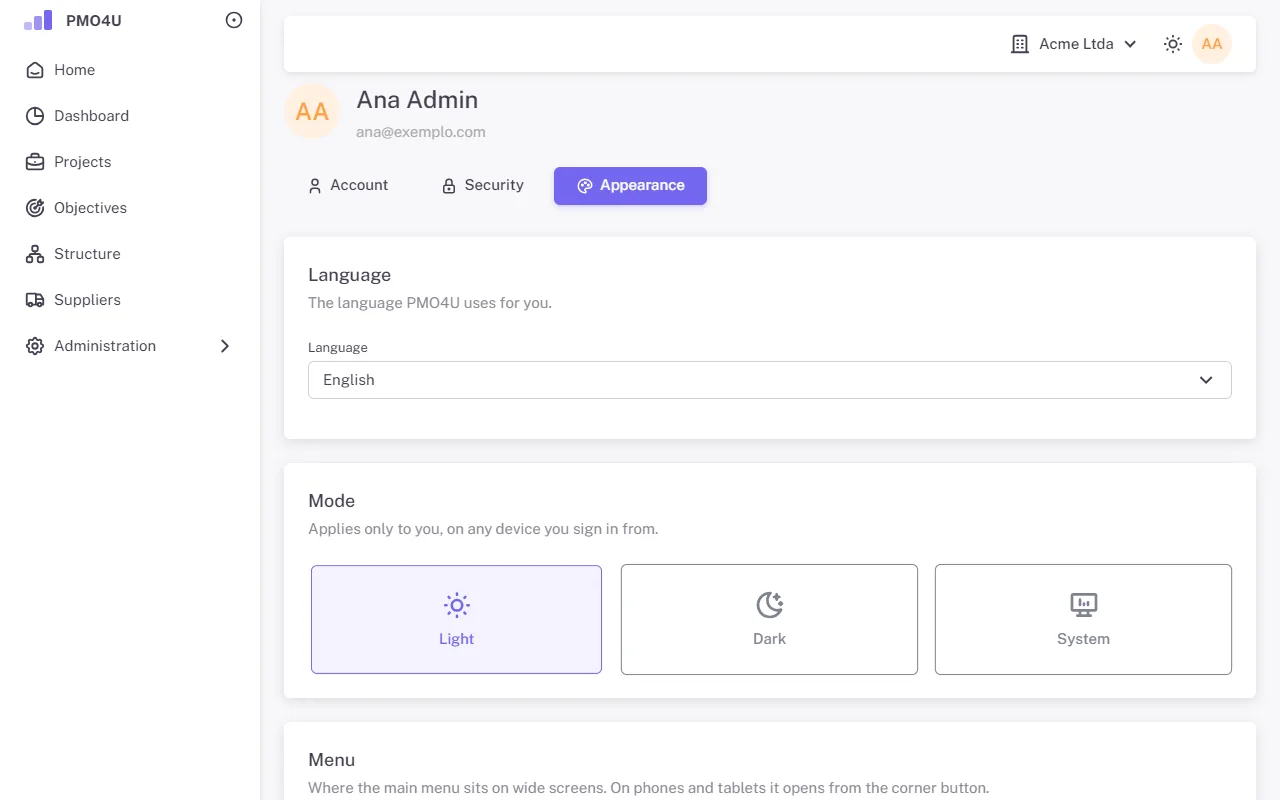
- Appearance: the mode (light, dark or system), the menu (side or top), the content width (boxed or full width) and the accent color. Everything takes effect immediately and is saved to your profile.
Administrator
The Administrator pages are in the Administration group of the menu: Members, Departments, Company, Audit log and Usage.
Initial setup
In a new installation, the first screen is Initial setup. Enter the setup code provided by PMO4u, the company name, your name, your email and a password, and click Create company and administrator. You come in as the first Administrator, with access to all departments.
Members and invitations
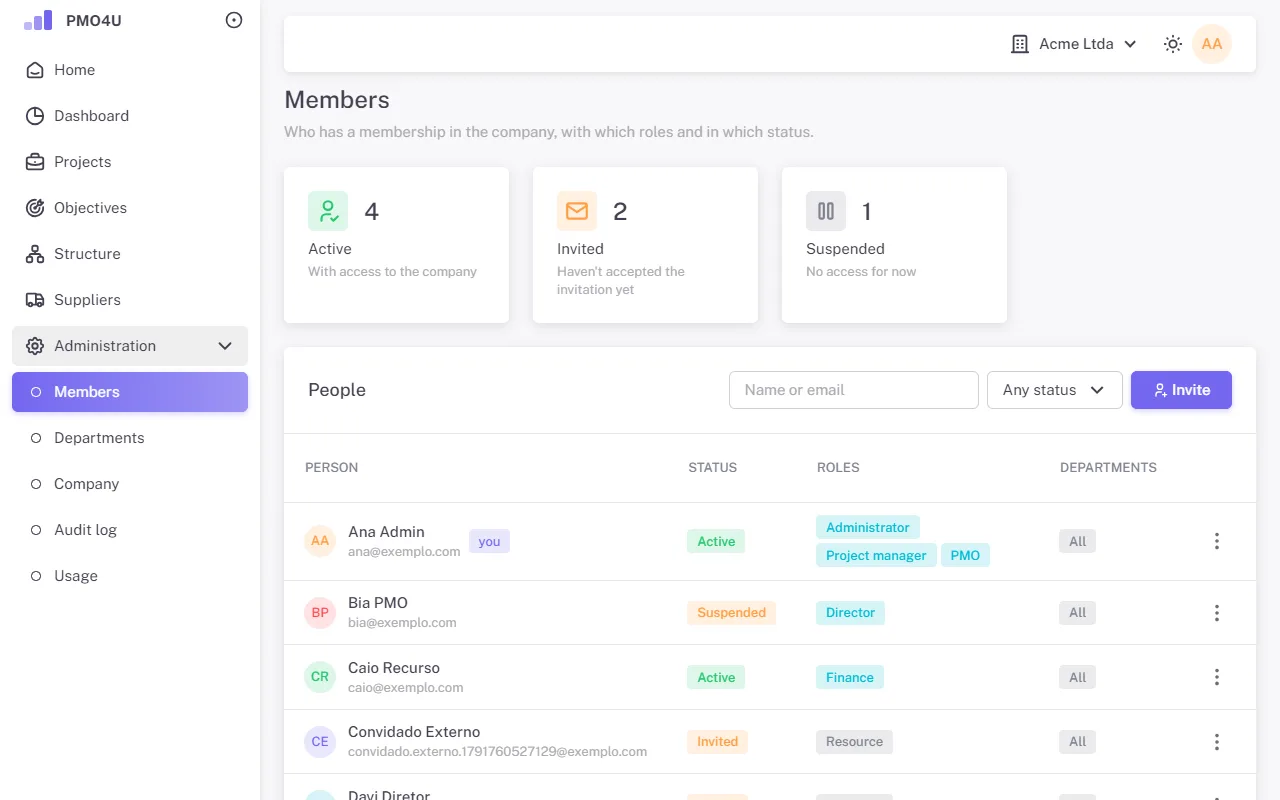
To bring someone in:
- In Members, click Invite.
- Enter Name and Email.
- Check the Roles. With no role checked, the person joins as a Resource.
- In Departments, check All (includes those created later) or the departments where they will work. At least one option is required.
- Click Invite. The next window shows the link with the Copy button. When the installation sends email, the link also goes to the person.
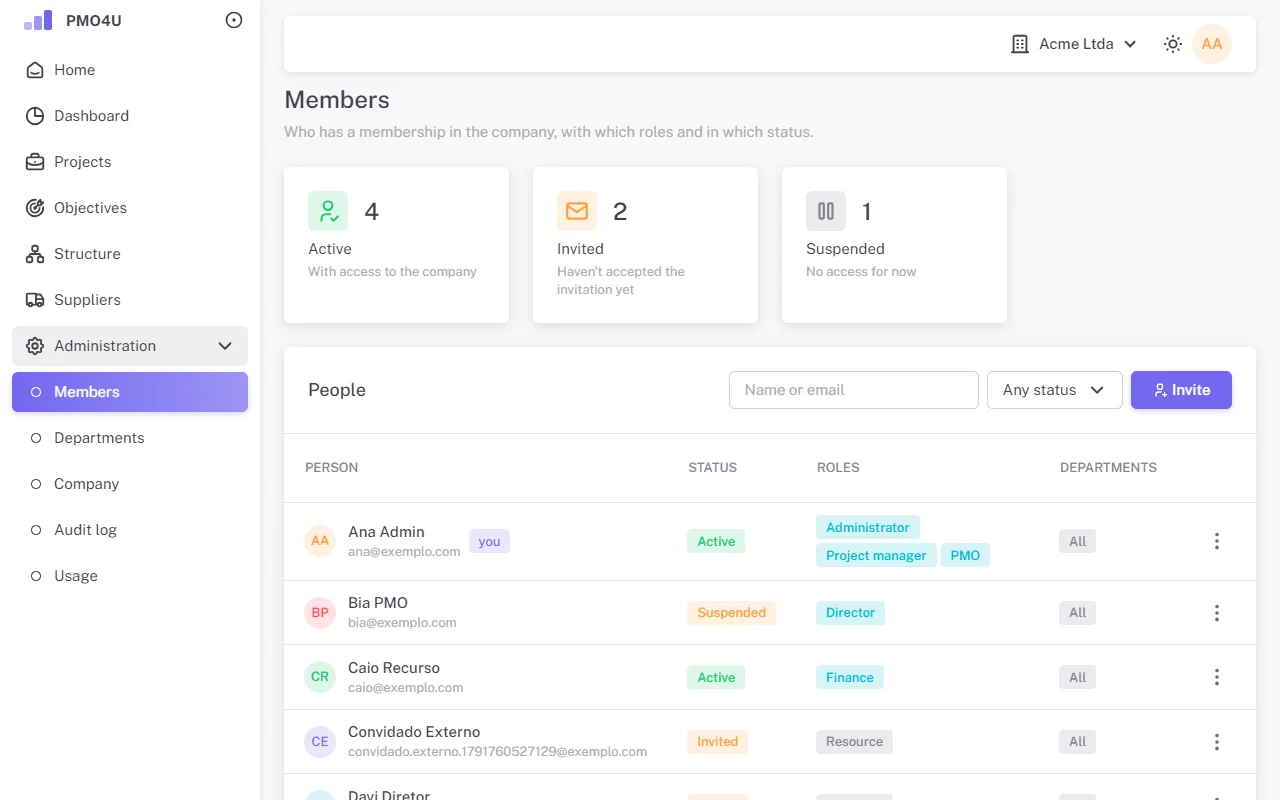
The link is shown only at that moment. If the person loses it, use New link in their row menu.
Roles, departments and status
The menu on each row (the three dots) changes with the membership status:
- Roles and departments: changes what the person does and where they work.
- New link and Cancel invitation: for people who are still Invited.
- Suspend and Reactivate: remove and restore access without losing history.
- End: ends the membership. New access will require a new invitation.
The company is never left without an active Administrator, and the billing contact cannot be suspended or ended while they are the billing contact. In the list, the PMO4u support account shows the "PMO4u support" tag: it can only be suspended and reactivated.
Reset someone's password
In the row menu, Reset password generates a single-use link, valid for 24 hours, for you to give to the person. If they also have a membership in another company in the installation, the link goes only to their email, and you don't see it. In that case, if the installation doesn't send email, only PMO4u support can generate the link.
Departments
Departments organize the portfolio and define where PMO, Director and Finance work. Only the Administrator maintains them.
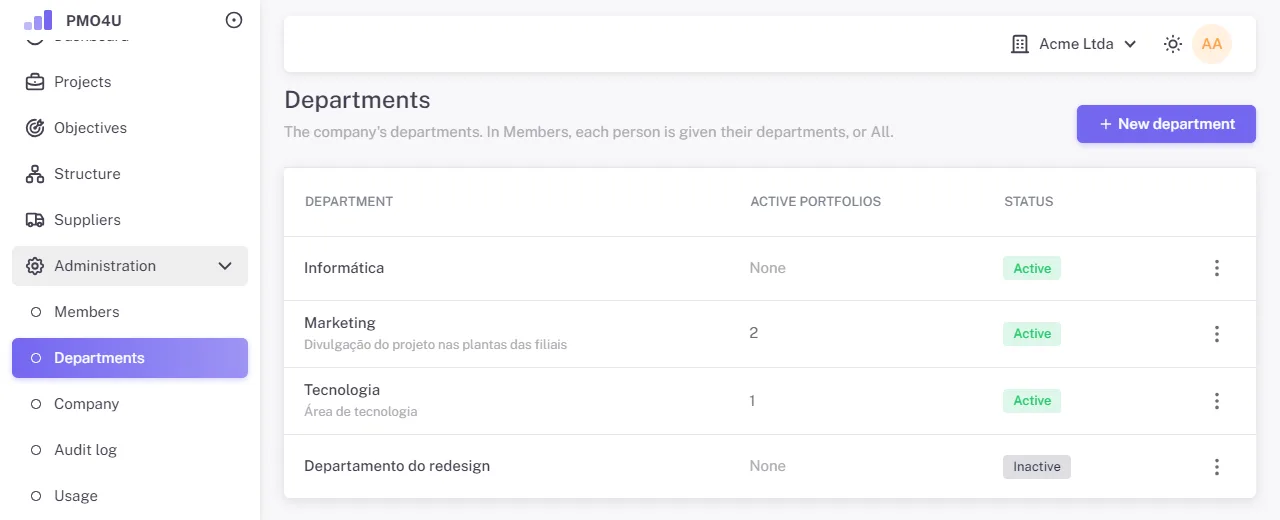
Use New department and, in the row menu, Edit, Deactivate and Reactivate. A department with an active portfolio cannot be deactivated. Names cannot repeat among active departments.
Company and SSO
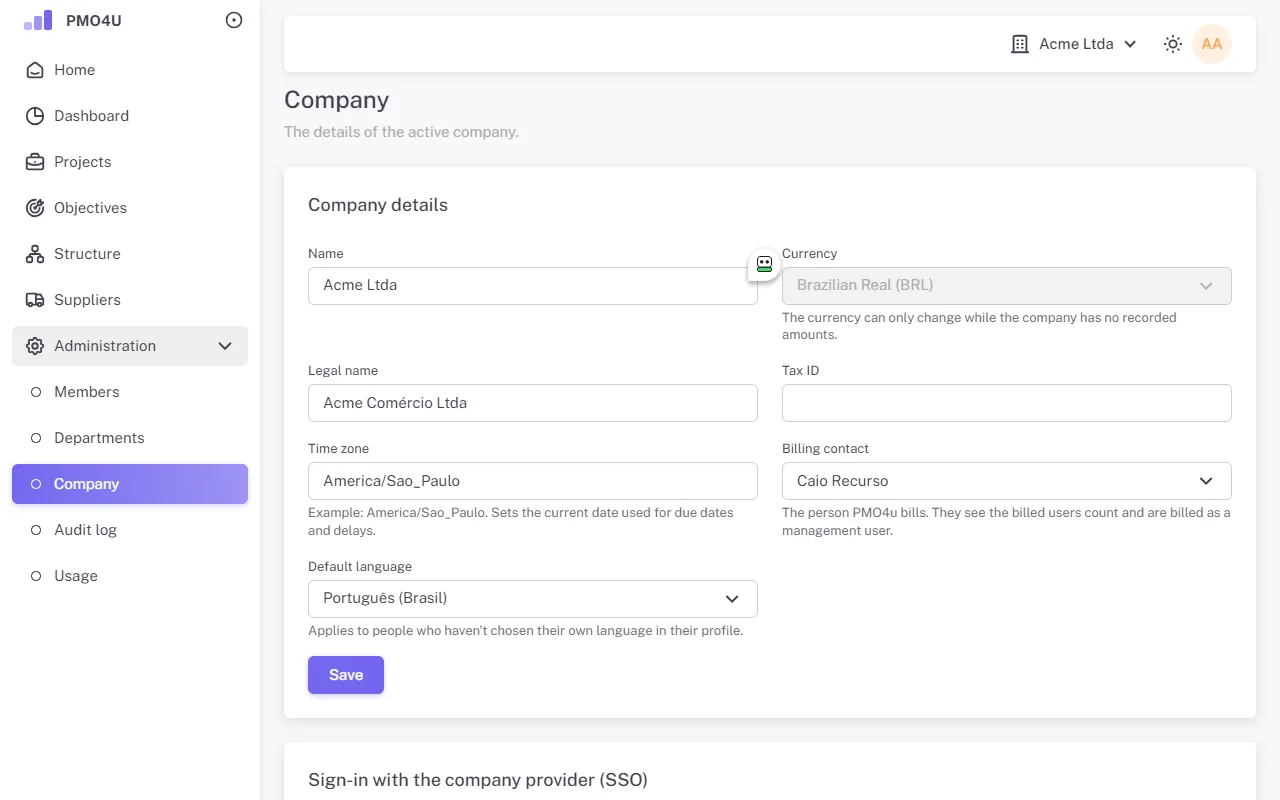
- Company details: name, legal name, tax ID and the Time zone, which sets today's date used for due dates and delays.
- Billing contact: the person at the company PMO4u deals with for billing. If they are not an Administrator, they see the Billed users page in the menu.
- Sign-in with the company provider (SSO): copy the callback address into the registration with your provider (Microsoft Entra, Okta, Google Workspace and others), enter the provider address and click Test address. Then fill in the client ID and client secret and the company's email domains, check SSO enabled and, if you want, Require SSO, and click Save SSO. With SSO required, only Administrators can still sign in with a password.
- Create another company: creates a new company in the same installation, with you as Administrator.
Audit log and Usage
Audit log lists the company's events, from newest to oldest, 50 per page: who did what, and when. Actions by PMO4u support are tagged "PMO4u support".
Usage shows the billed users for each month, in this company and in the installation, the company's numbers (active, invited, participants without access, projects and records) and the installation status: database, daily backup, email and version.
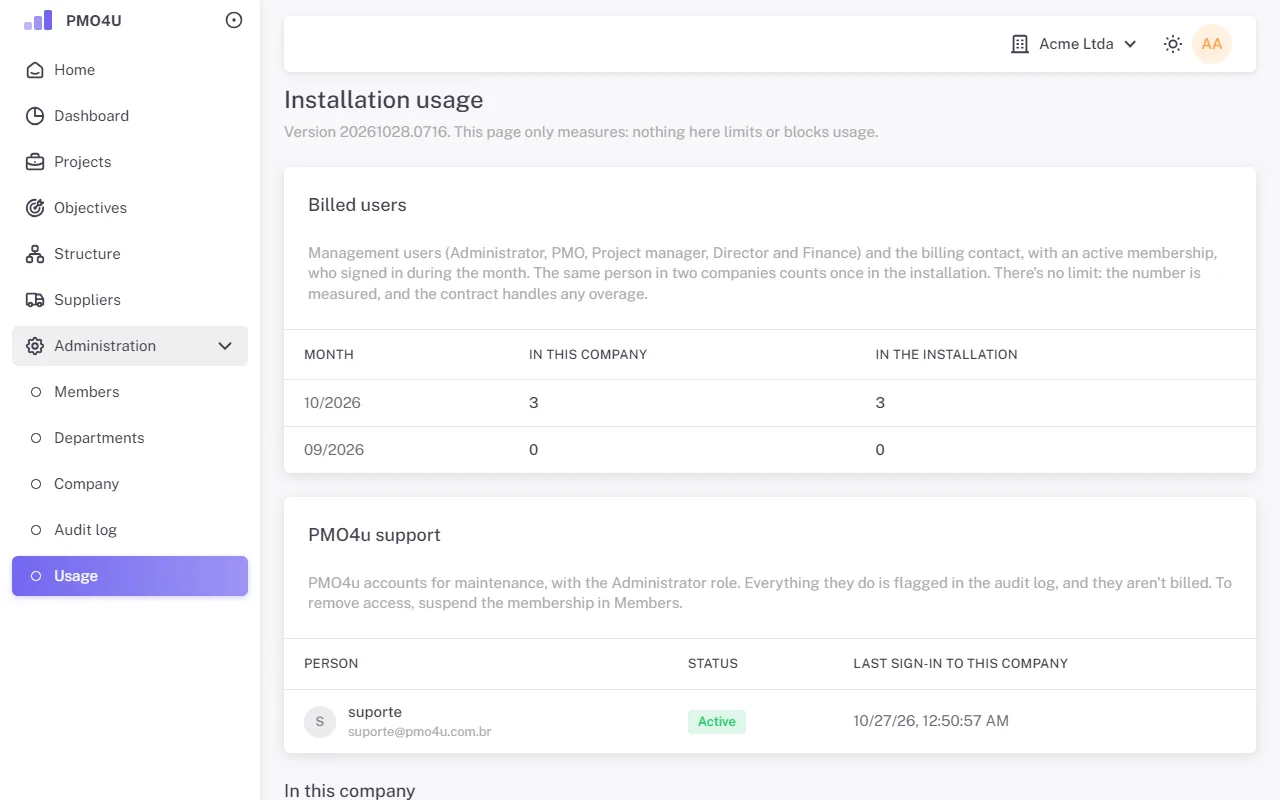
A billed user is an account with an active membership and the Administrator, PMO, Project manager, Director or Finance role that used the system during the month. Resources, participants without access and the support account don't count.
PMO
The PMO organizes the portfolio, decides on requests and follows all projects in their departments, with permission to do everything the manager does in them. Also read the Project manager chapter.
Structure
The portfolio is organized into department, portfolio and program. The Administrator creates the departments, and the PMO creates portfolios and programs in Structure.
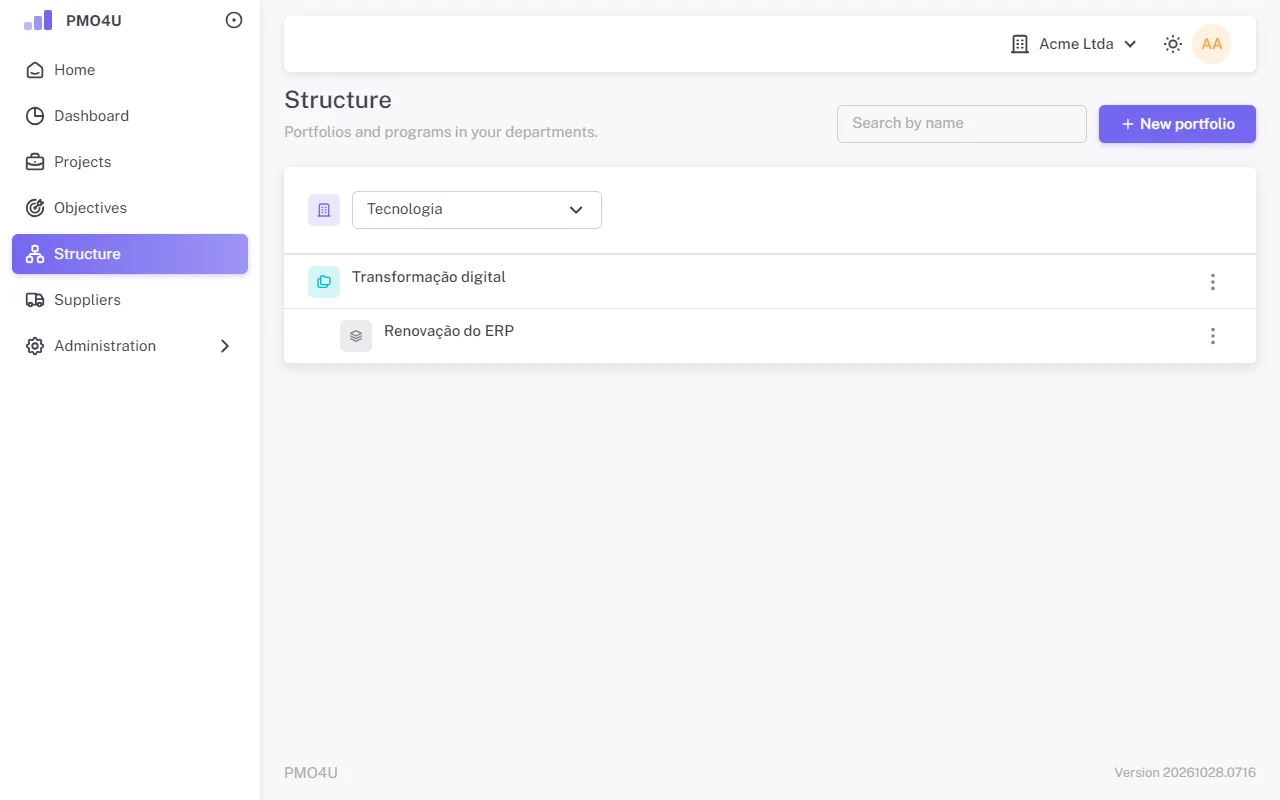
- New portfolio: choose the department and enter a name and description.
- In the portfolio menu, New program creates a program inside it.
- Deactivate only works with no active items below and no projects in progress; Reactivate requires the item above to be active.
- Names cannot repeat among active items at the same level: portfolio within the department, program within the portfolio.
Submit a request for a manager
The PMO also submits requests, just like the manager (see Submit a request), with one extra field: the Project manager, chosen among people with the Project manager role.
Review the charter
When the manager submits the charter, the project goes In review and the charter is locked. Open the project and use the main button or More actions:
- Approve: the project becomes Approved, and that charter version becomes current.
- Return: sends it back to the manager to adjust. A reason is required and is shown to them on the charter.
- Reject: ends the request. A reason is required, and the project becomes read-only.
Whoever manages the project does not decide on their own request: a PMO who is also the manager of that project doesn't see these actions on it.
Manager and program
On the charter screen, the Manager and program card lets the PMO change the project manager and the program at any time before the project ends. On the first charter version, the PMO also chooses them directly in the form.
Decide on a charter change
After approval, the charter only changes through a change request (see Request a charter change). When one comes in for review, use Approve change or Decline change, the latter with a reason. Previous versions are kept in Charter versions.
Strategic objectives
Objectives belong to the whole company. The PMO creates and maintains them; Director and Project manager only read them. Each project states how much it contributes (see Contribution to objectives).
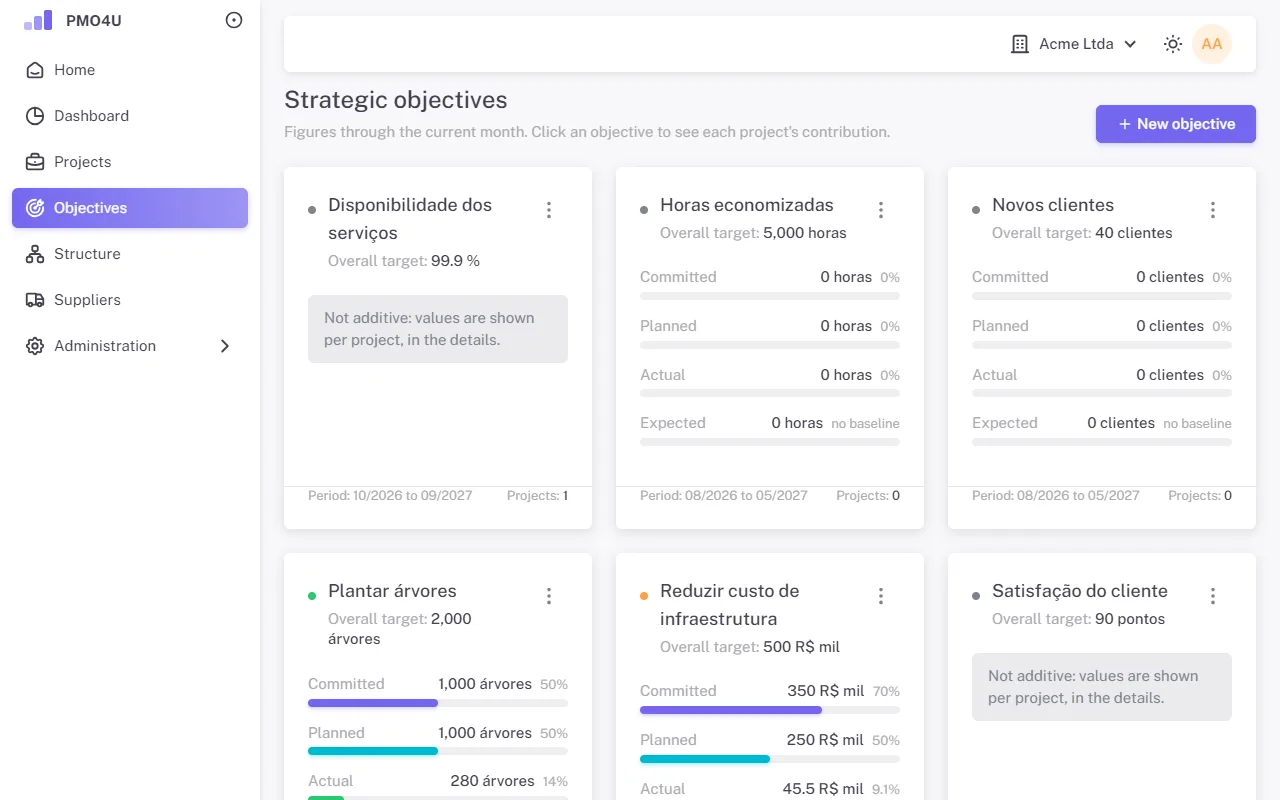
- Click New objective.
- Enter the name, description, sponsor, Target and Unit (for example, "hours", "customers", "USD").
- Check Additive measure when project values can be added up. For a non-additive objective, the numbers are shown per project only.
- Set the Start month and End month, up to 36 months, and click Create objective.
Click an objective to see each project's contribution. Once the objective has contributions, the unit and the additive choice no longer change, and it cannot be deleted. Each objective's color follows the adherence traffic light.
Suppliers
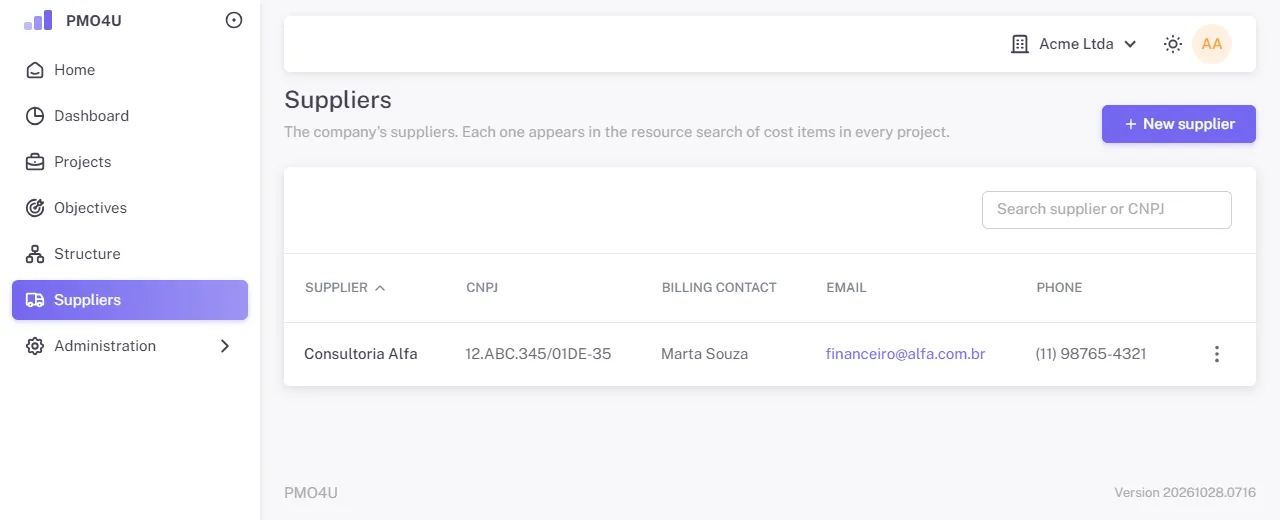
In Suppliers, PMO and Finance maintain the records used in the projects' cost items: name, CNPJ (optional, unique among active suppliers), phone, billing contact and email. The manager can also add a new supplier from the project's Finance page.
Cancel an approved project
Only the PMO cancels a project that is Approved, In progress or On hold, through More actions, Cancel project, with a reason. The manager can cancel only before approval. A canceled project is read-only.
Project manager
The manager runs the project from start to finish. Everything in this chapter the PMO can also do in the projects in their departments.
Submit a request
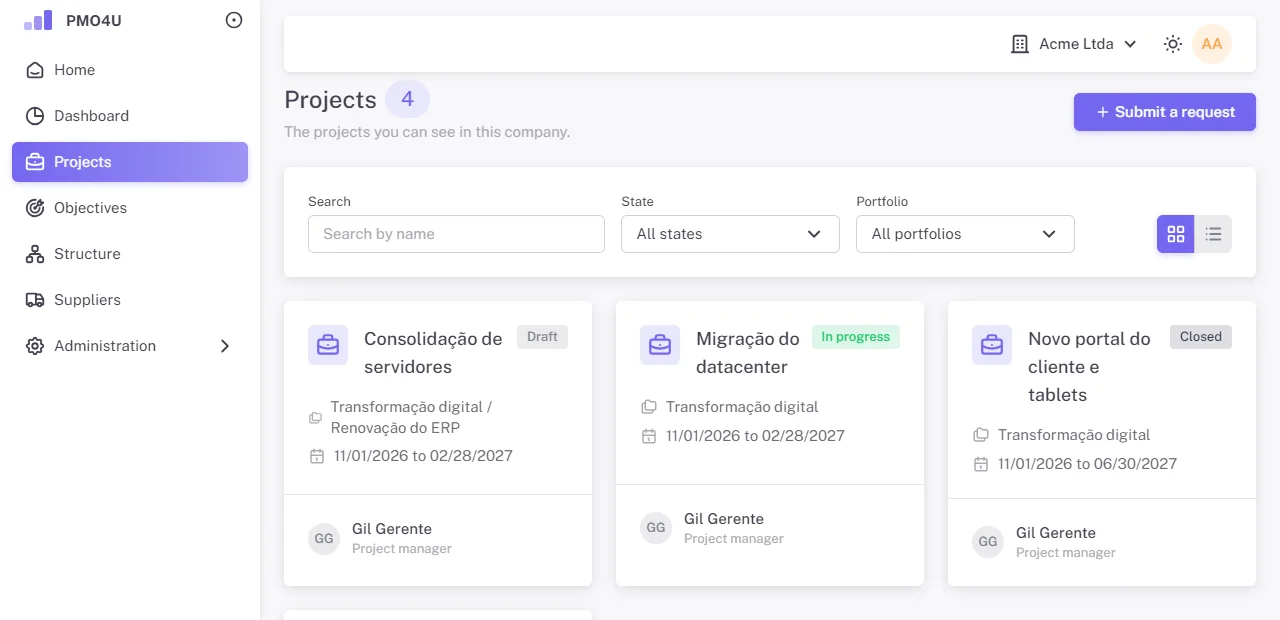
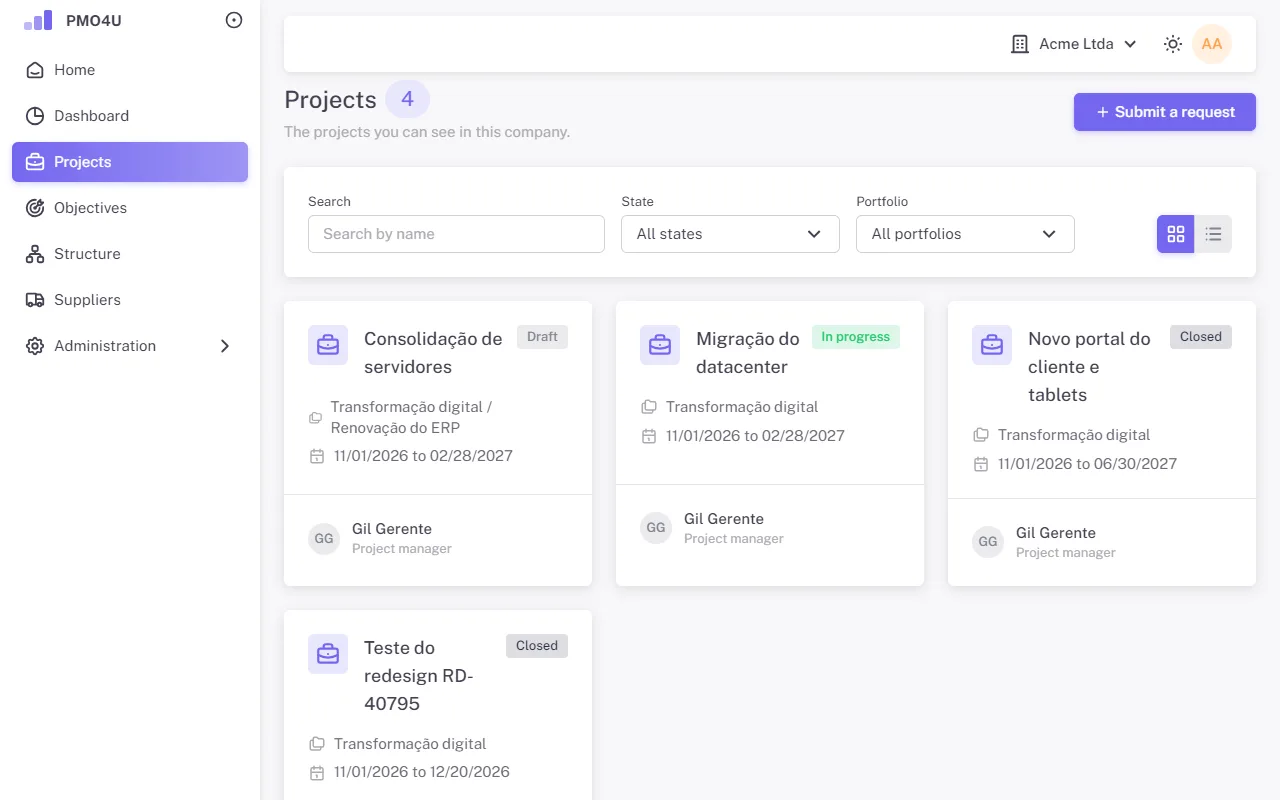
- In Projects, click Submit a request.
- Enter the Name and choose the Portfolio (shown as "Department / Portfolio").
- Click Submit a request. The project starts as Draft, with you as manager.
If there is no active portfolio in your departments, ask the PMO to set one up in Structure.
Fill in the charter
The charter is filled in three steps, with the Back and Next buttons. Save charter saves everything, at any step.
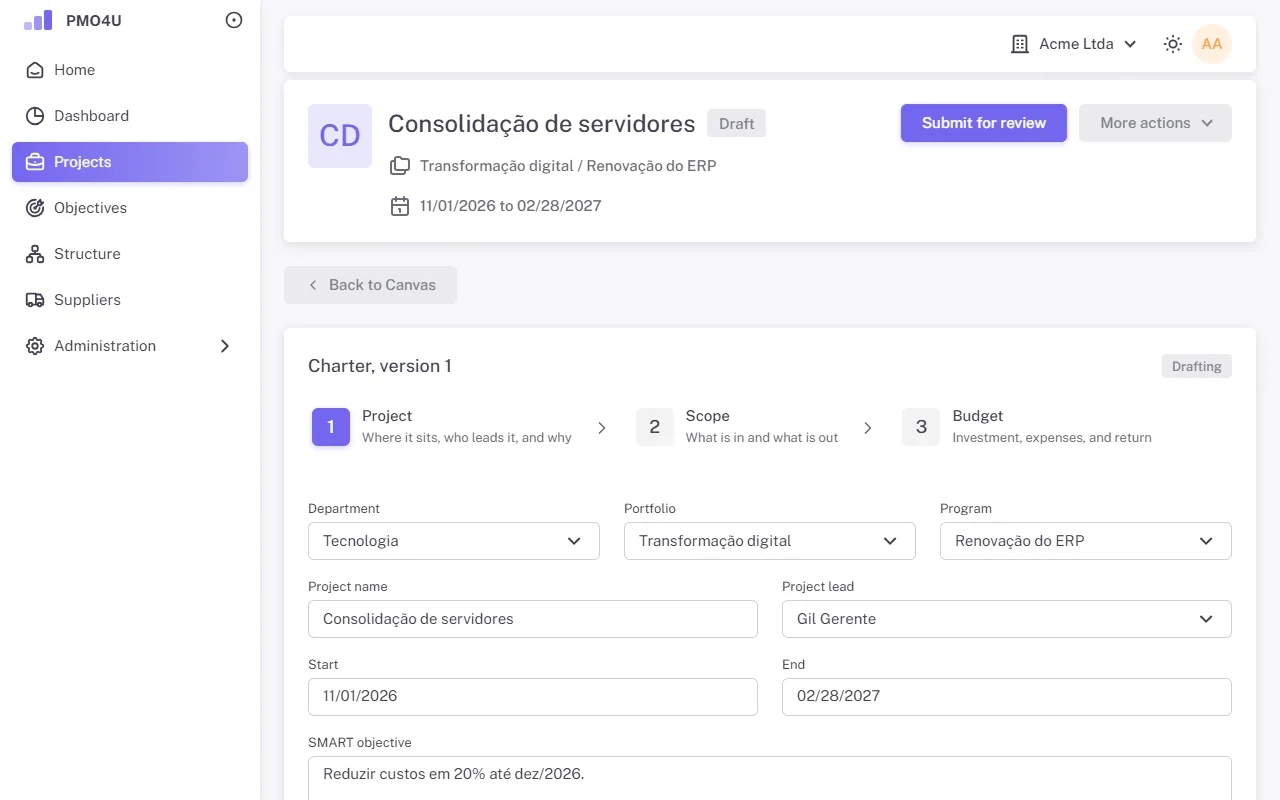
- Project: department, portfolio, program, name, project lead, start and end, SMART objective (specific, measurable, achievable, relevant and time-bound), justification and whether it is Aligned with company strategy.
- Scope: what is in, what is Out of scope and the Project acceptance criteria.
- Budget: investment (CAPEX) and expenses (OPEX), with details; estimated ROI as a percentage and as an amount, with the details and the tracking period (ROI start and end, up to 60 months); expected savings; operating cost (TCO). The Projection button takes you to Return.
The charter is edited by the manager or the PMO in Draft and Returned. In review and after approval, it is locked.
Submit for review
With the charter ready, click Submit for review, at the top of the project page. To submit, start, end, objective, justification, scope and acceptance criteria are required, plus an active portfolio. If anything is missing, the charter opens with the fields highlighted.
If the PMO returns it, the project becomes Returned and the charter shows the reason. Make the adjustments and submit again.
Canvas
The project opens on the Canvas, a page with blocks that summarize everything. Click anywhere on a block to open the artifact. Inside each artifact, Back to Canvas takes you back.
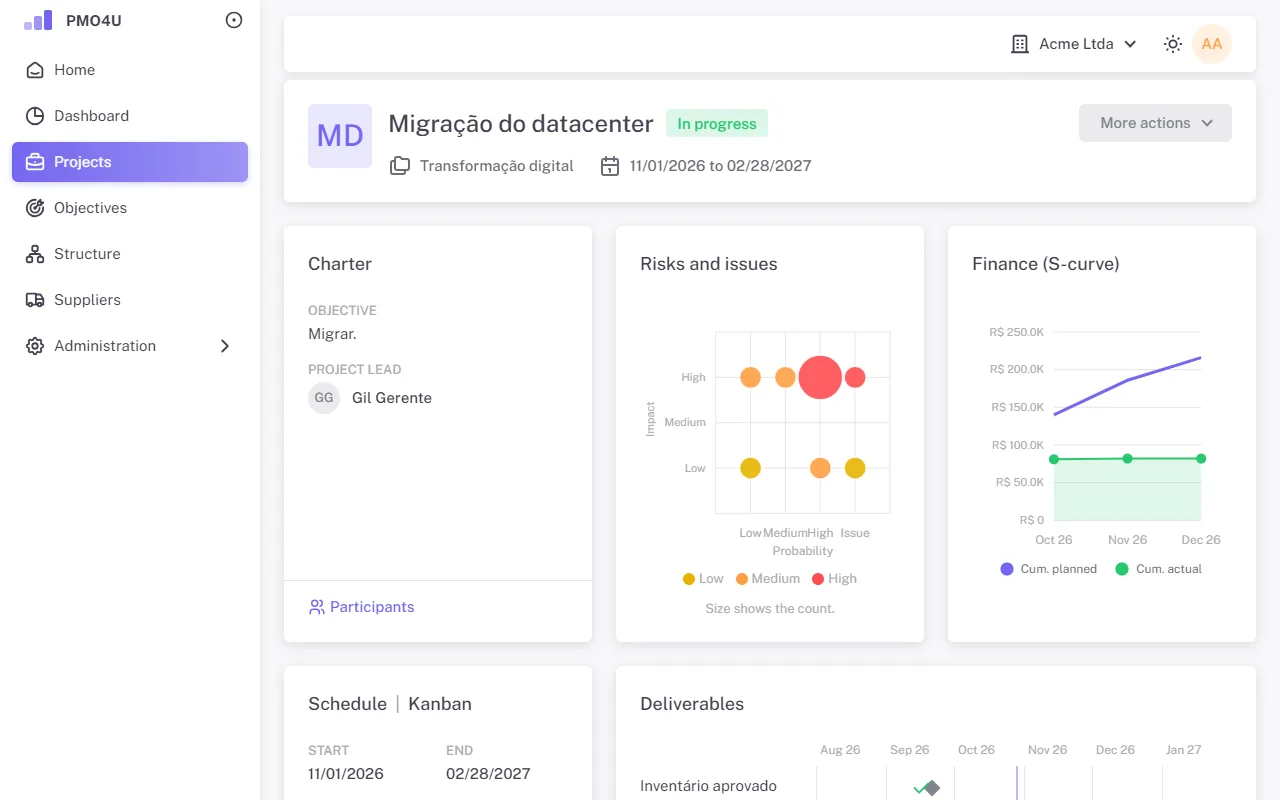
| Block | What it shows | Opens |
|---|---|---|
| Charter | Objective and project lead, with the Participants link | Charter |
| Risks and issues | Bubbles by probability and impact; the size is the count | Risks and issues |
| Finance (S-curve) | Cumulative planned and actual, from two months with values | Finance |
| Schedule | Kanban | Start and end from the charter | Schedule or Kanban, depending on the title clicked |
| Deliverables | Timeline of the deliverables, with the situation of each one | Deliverables |
| Status report | The latest executive summary and the next steps | Status reports |
| Strategic objectives | The execution of each of the project's contributions | Contribution to objectives |
A block you are not allowed to see does not appear. More actions, at the top, groups the state actions and the reports.
Participants
A participant is someone who works on the project. They can then see the project, be the owner of actions and be assigned to tasks.
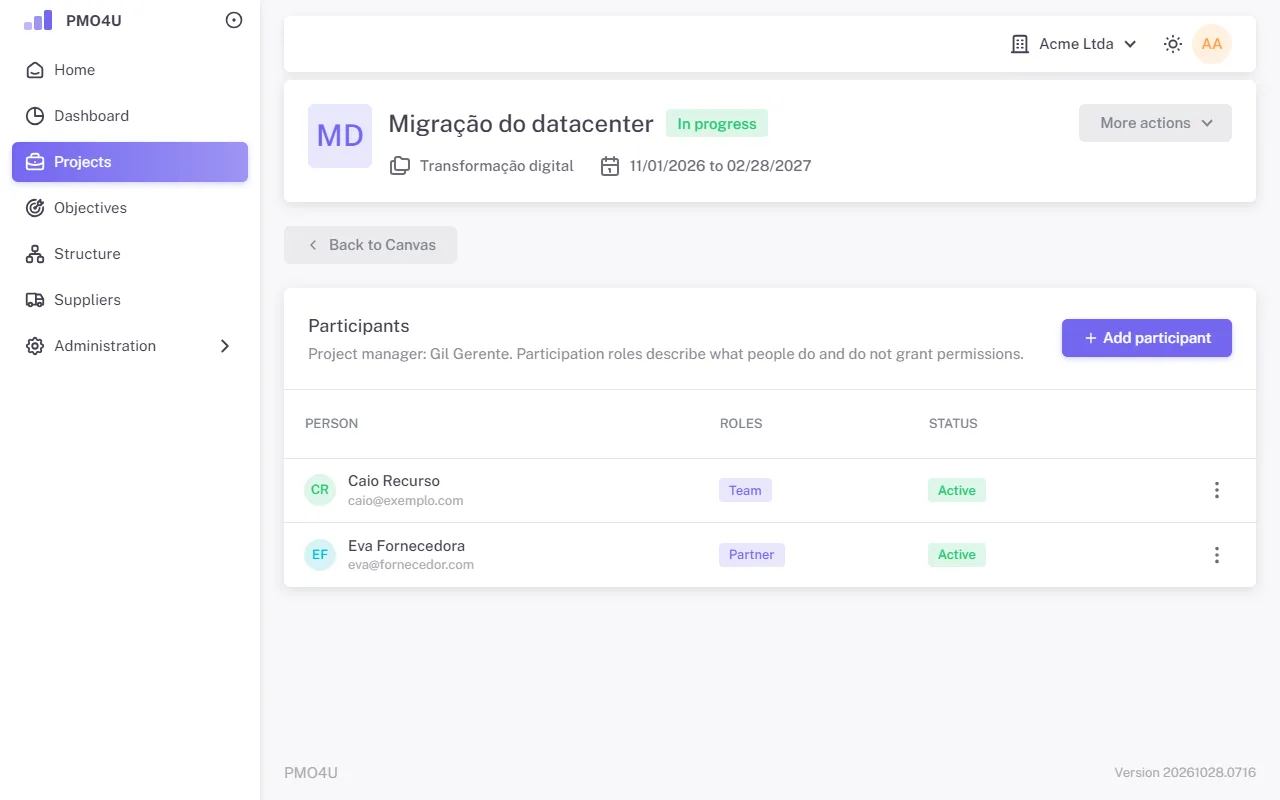
- Click Add participant.
- Choose a Person from the company or New person, entered below, with name and email. The new person joins without a user account; an Administrator can invite them later.
- Check the Participation roles: Sponsor, Team, Stakeholder, Partner or Beneficiary. They describe the person's part in the project and do not grant permissions.
- Click Add.
In the row menu: Edit roles, Remove and Add back. Someone with open actions in the project cannot be removed.
Risks and issues
A risk is something that may happen; an issue is something that has already happened.
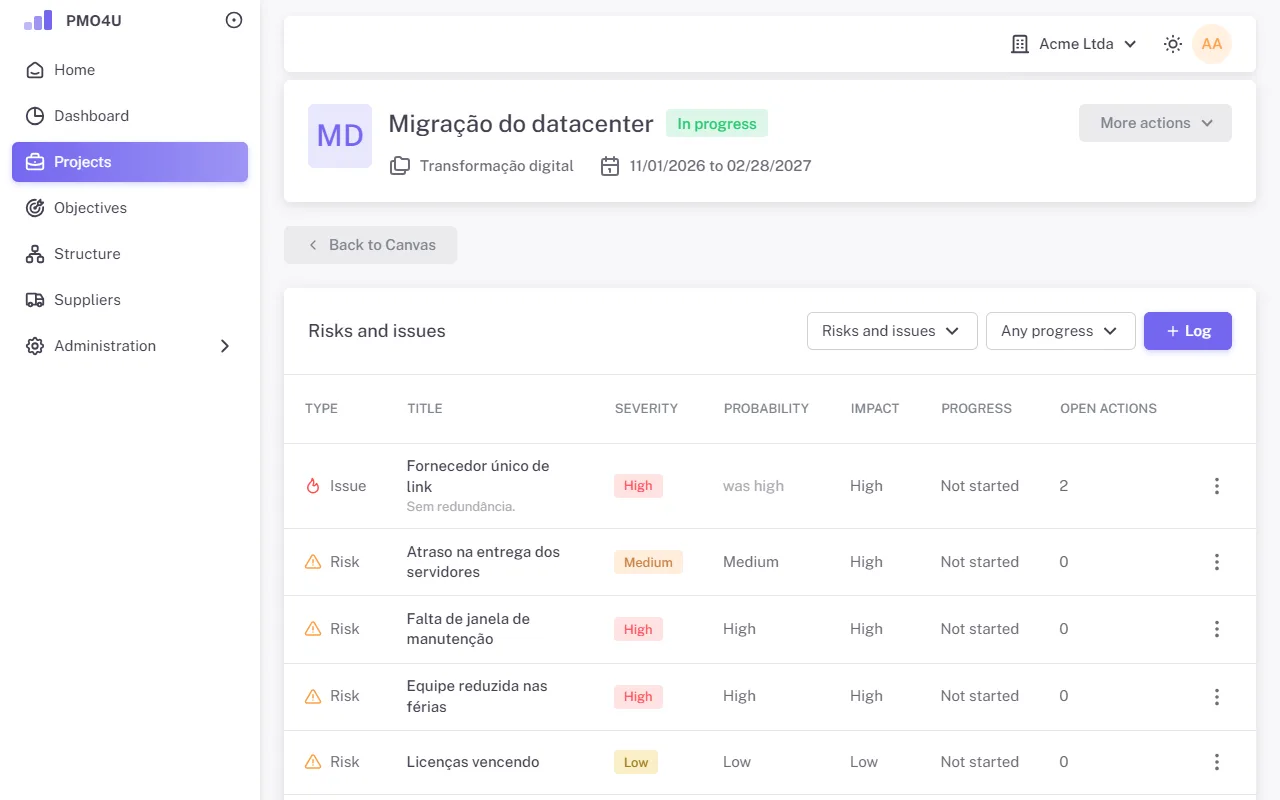
- Click Log and choose the Type: Risk or Issue.
- Enter the title and description, the Probability (risks only) and the Impact, from Low to High, and the progress.
- The severity is calculated automatically.
In the row menu:
- Add action: creates an action already linked to the risk.
- View actions: lists only its actions.
- Convert to issue: converts a risk that materialized, keeping the original probability.
- Edit and Deactivate: it can't be deactivated while it has open actions.
Actions
An action is a task with an owner and a due date, standalone or linked to a risk or issue.
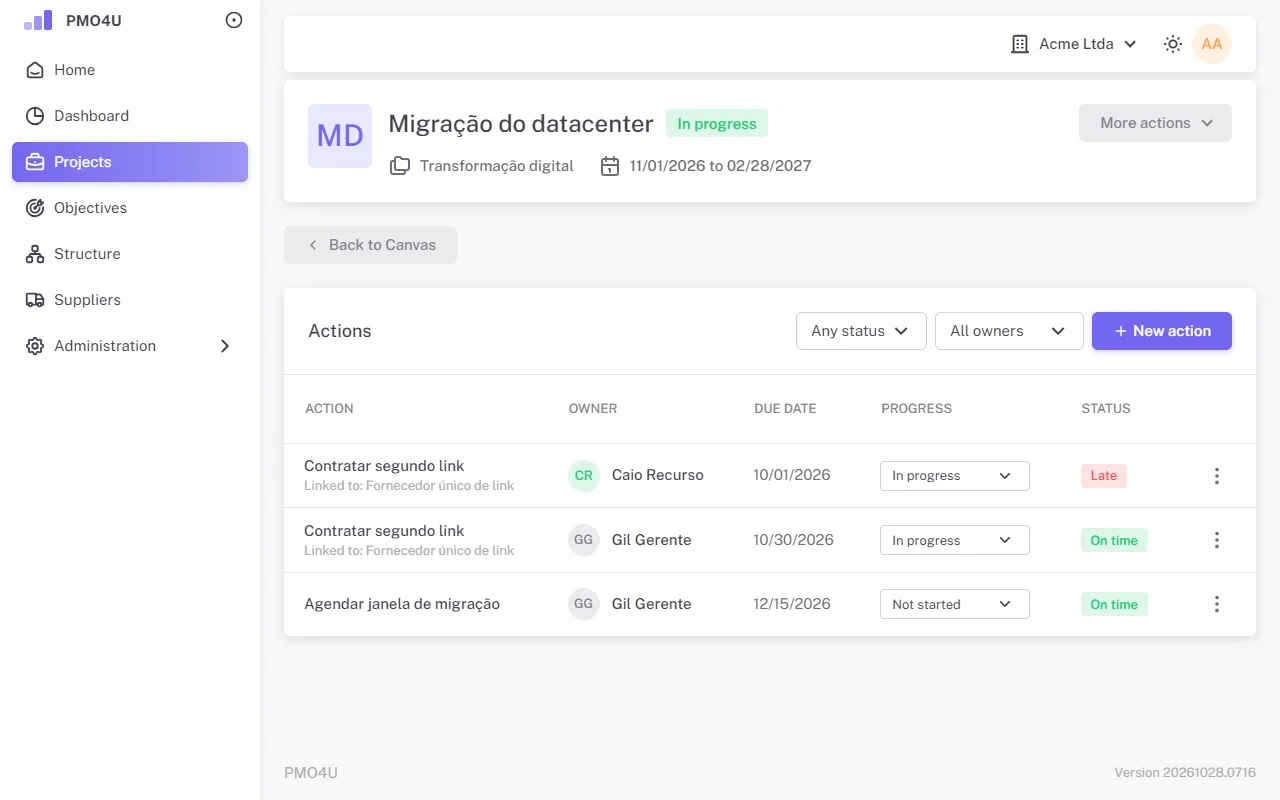
In New action, enter the title, description, Owner (an active participant or the manager), Due date (required), progress and what it is Linked to, if applicable. The owner updates the progress from Home or from the list; the situation follows the due date.
Deliverables
Deliverables are the milestones of what the project produces, shown as a Table or a Timeline.
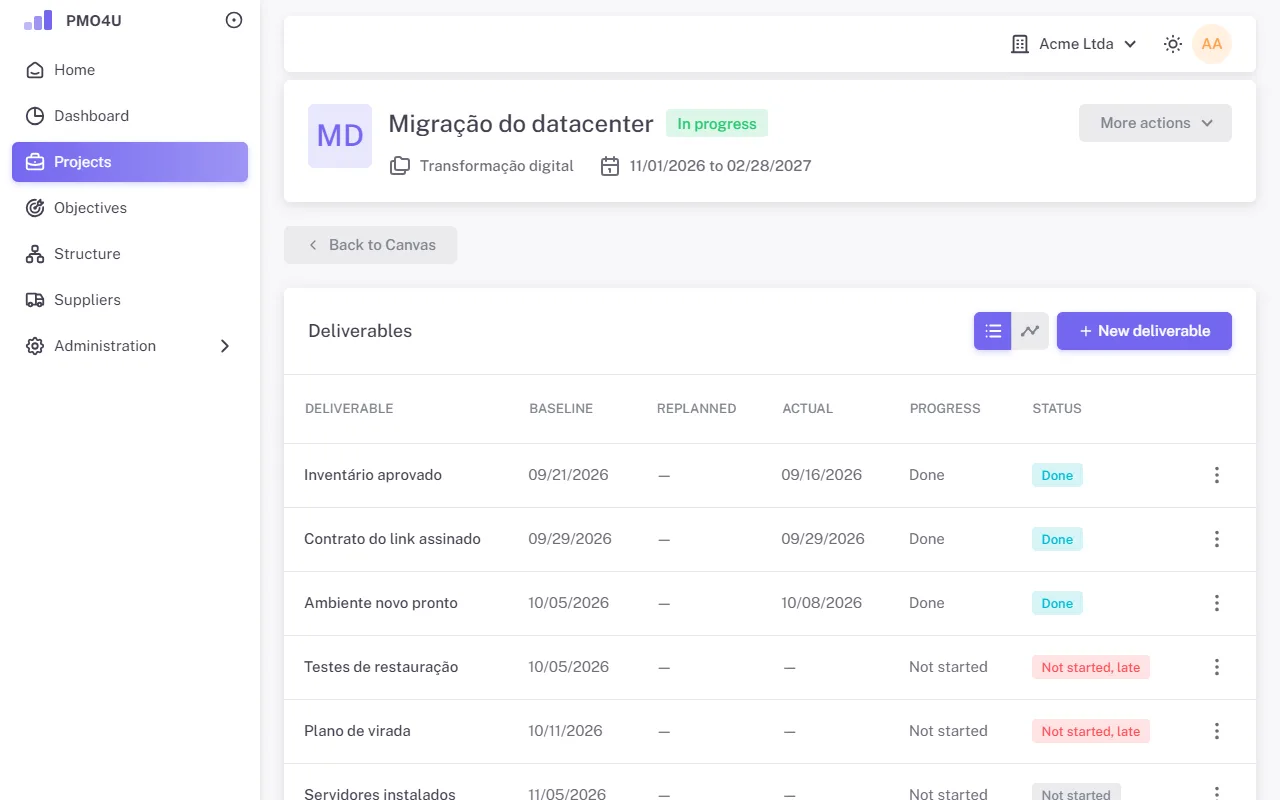
- Baseline date: the original commitment. It is required and does not change once created.
- Replanned date: the current forecast, when it has changed.
- Actual date: requested on completion or cancellation, and cannot be in the future.
- Progress: Not started, In progress, Done or Canceled.
The situation compares the progress with the replanned date, or with the baseline when there is no replanning.
Status reports
The status report is the project's periodic update to leadership. A published status report cannot be changed.
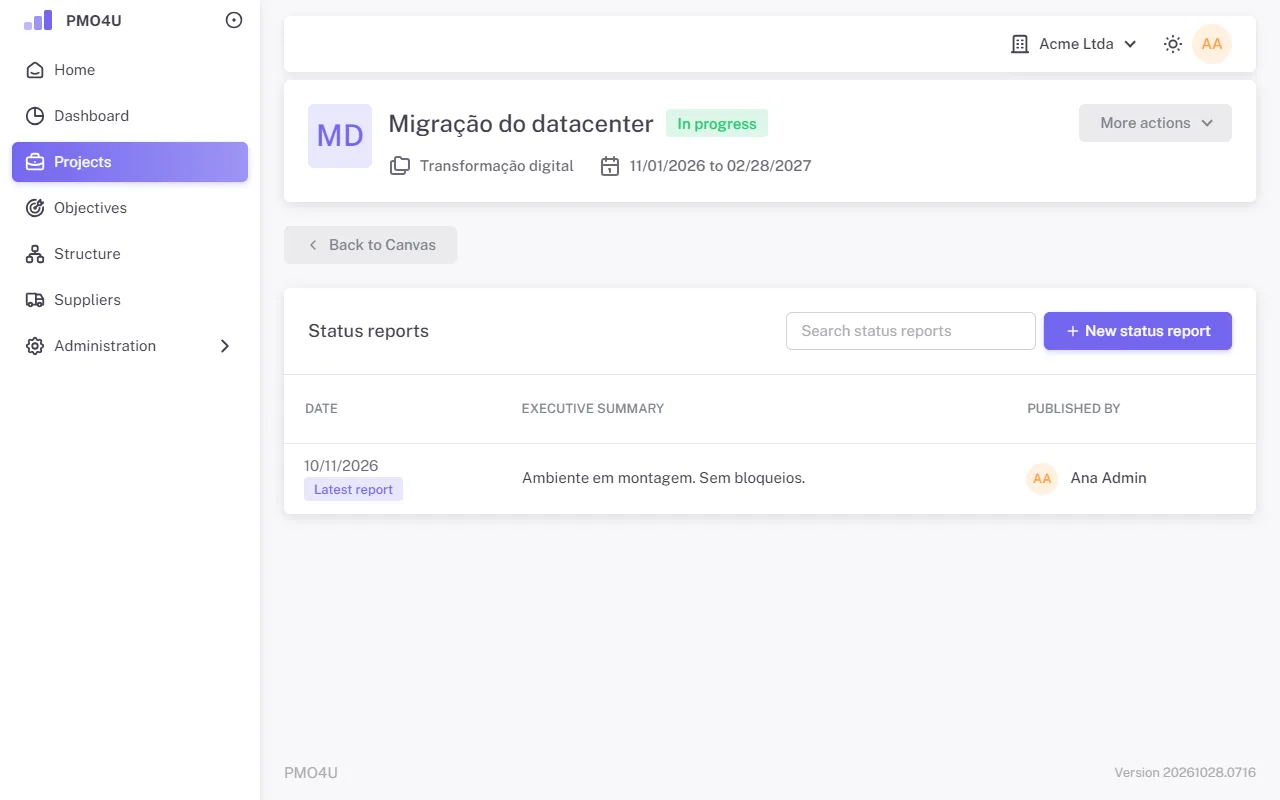
- Click New status report.
- Enter the Report date (up to today), the Executive summary (up to 500 characters), the details and the Next steps.
- Click Save and confirm with Publish.
To correct one, delete the latest status report with the trash icon and publish another. This can be done by whoever published it or by the manager, within 7 days of publication. The deletion is recorded in the audit log.
Kanban
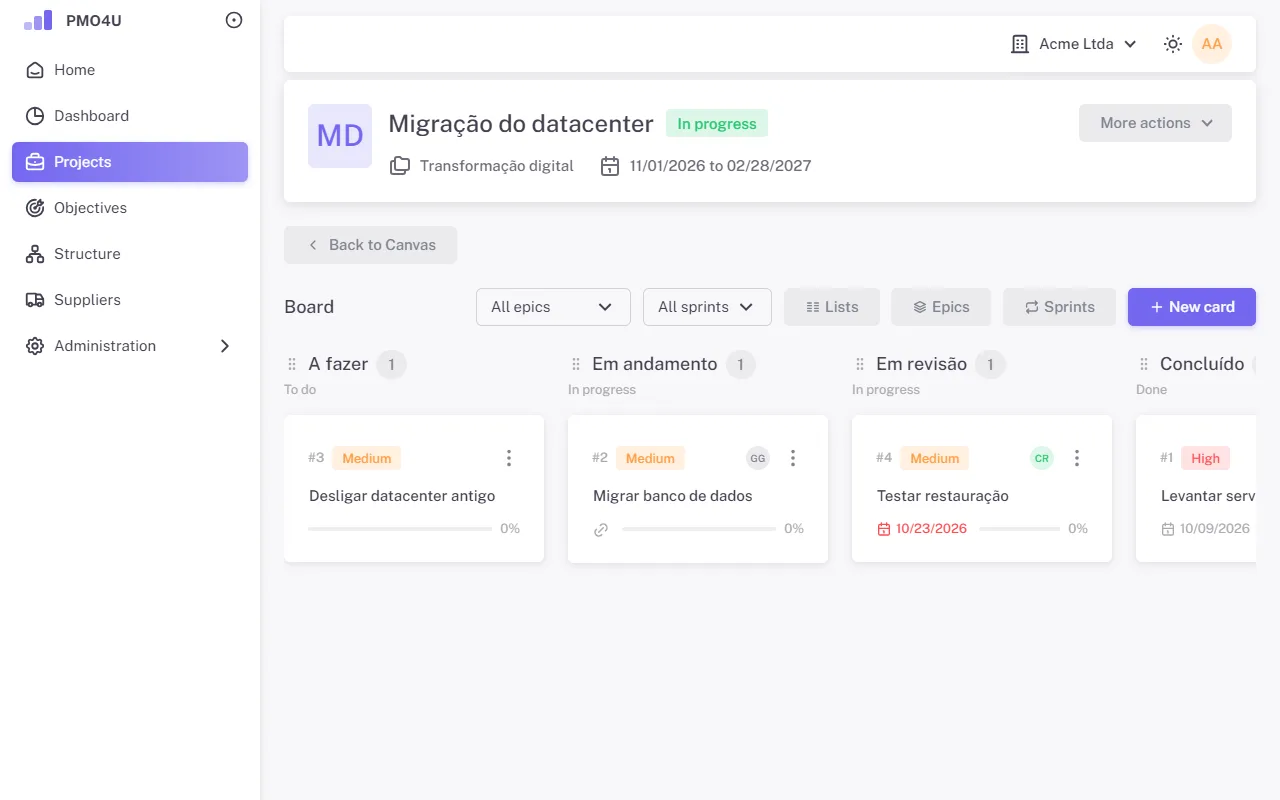
- On an empty board, Create default lists creates To do, In progress and Done. In Lists, create others, each linked to a stage.
- Epics group cards by theme. Sprints have a start and an end, and the end becomes the suggested due date for the sprint's cards.
- New card: title, list, epic, sprint, priority, due date, predecessors, owner, progress, description and acceptance criteria. Each card gets a number (#N).
- Open the card to use the Checklist and see the Move history.
- Drag the card between lists or use Move to in its menu. Moving ahead of a predecessor is allowed, but the system warns you.
The manager and the PMO maintain the board. A card's owner moves their own card and checks off its checklist.
Schedule
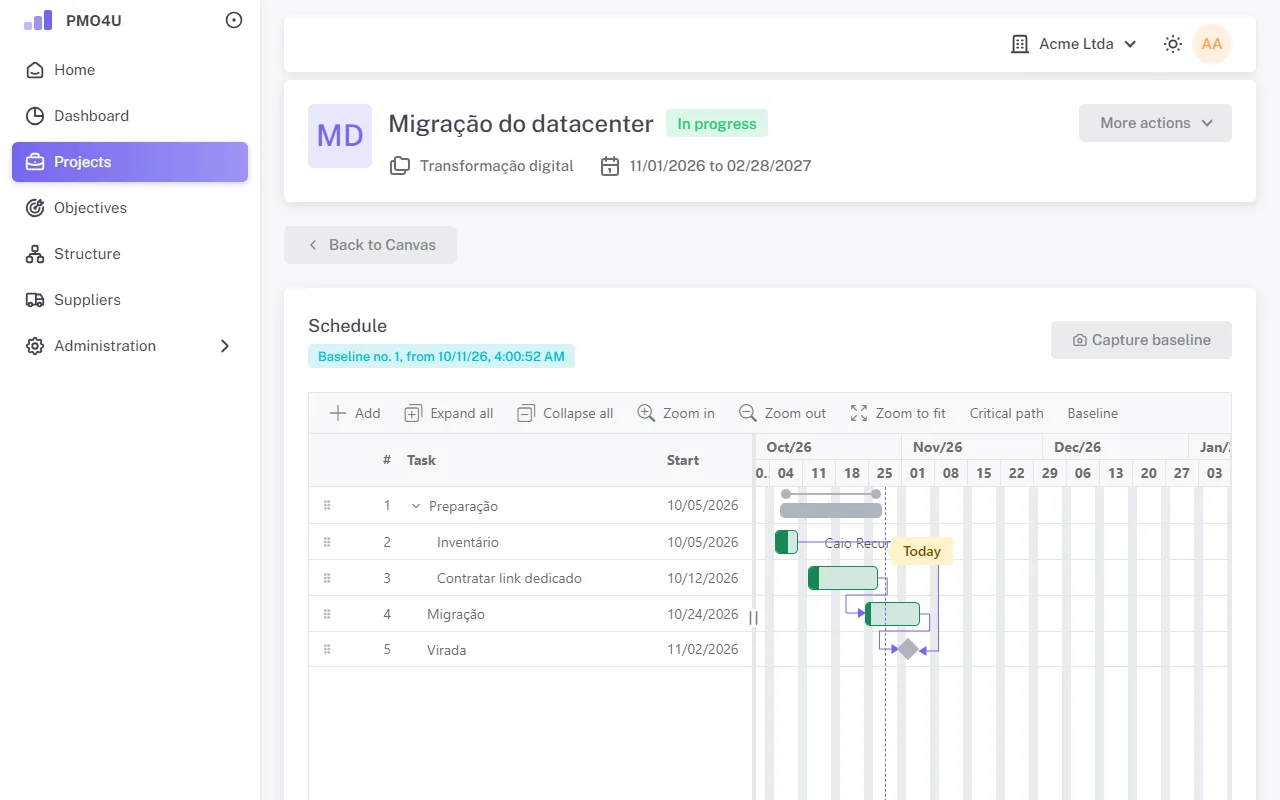
- Use Add, Edit and Delete on the toolbar, or edit directly in the grid. Indent places the task inside the one above, which becomes a summary task; the summary's dates and percent are calculated from its subtasks.
- A task with zero duration is a milestone.
- Dependencies: Finish-to-start, Start-to-start, Finish-to-finish and Start-to-finish, with lag. Create them in the task window or by dragging from one bar to another. The system refuses cycles.
- Resources: only project participants or the manager. The assigned person enters the task's percent, also from Home.
- Capture baseline saves a snapshot of the dates, with a reason. The Baseline button shows the comparison.
- Critical path, Zoom in, Zoom out and Zoom to fit help you read the plan.
The schedule never reschedules anything on its own. When a date breaks a dependency, the task gets the "Conflict" tag, and you decide the adjustment.
Finance
Finance compares what was planned in the charter with the amounts budgeted in the cost items, the actual and the paid, separating investment (CAPEX) and operating expense (OPEX).
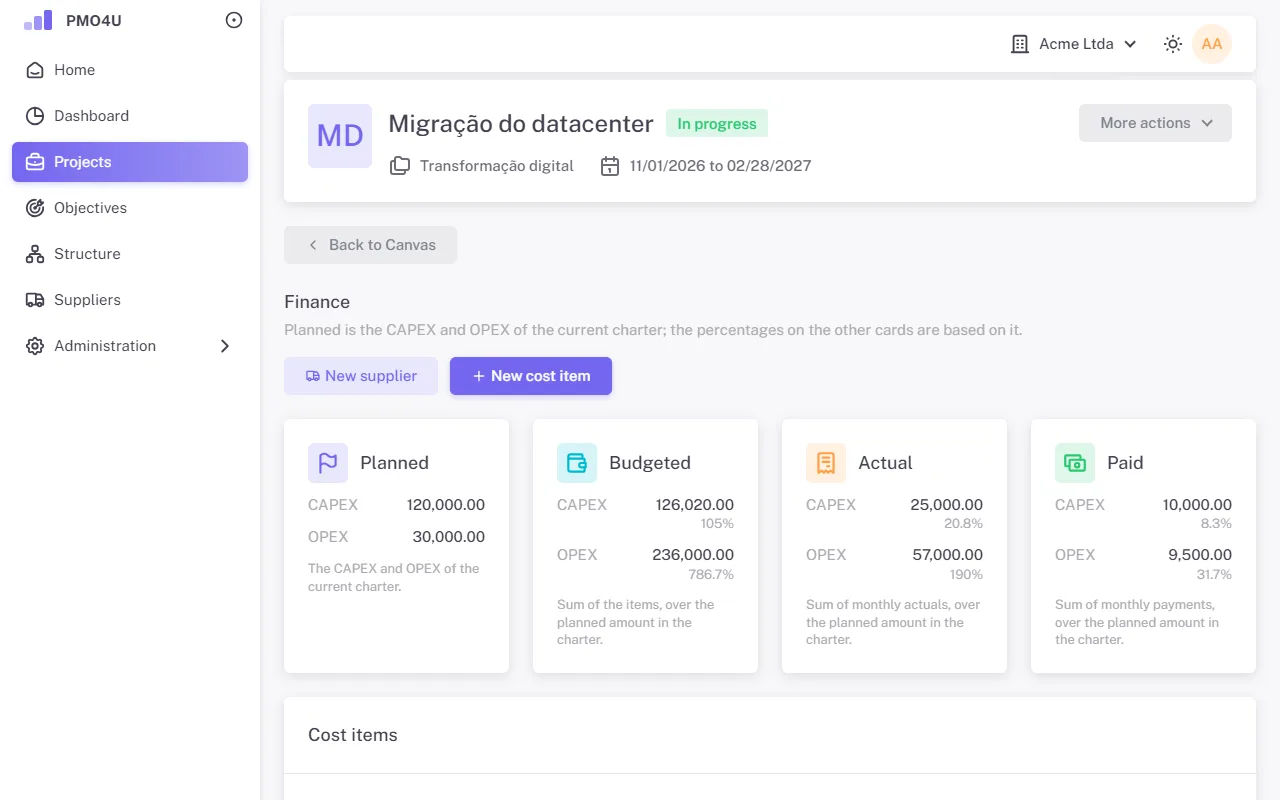
- Click New cost item and choose the Cost type: Supplier/Person, Material or General cost.
- For Supplier/Person, choose the Resource and the Allocation, fixed price or hourly. If the supplier doesn't exist yet, use Supplier right there.
- Enter the value and quantity, the Classification (CAPEX or OPEX) and the start and end months, up to 24 months. The item total is calculated.
- In the item menu, Edit forecast opens the monthly grid with planned, actual and paid. The current month is highlighted. Save with Save.
The manager and the PMO plan. Finance, the manager and the PMO enter actual and paid amounts, even after closure. An item with entered values cannot be deactivated.
Return
Return measures, month by month, the ROI committed in the charter. It opens from the Projection button, in the charter's Budget step, once the ROI period has been entered.
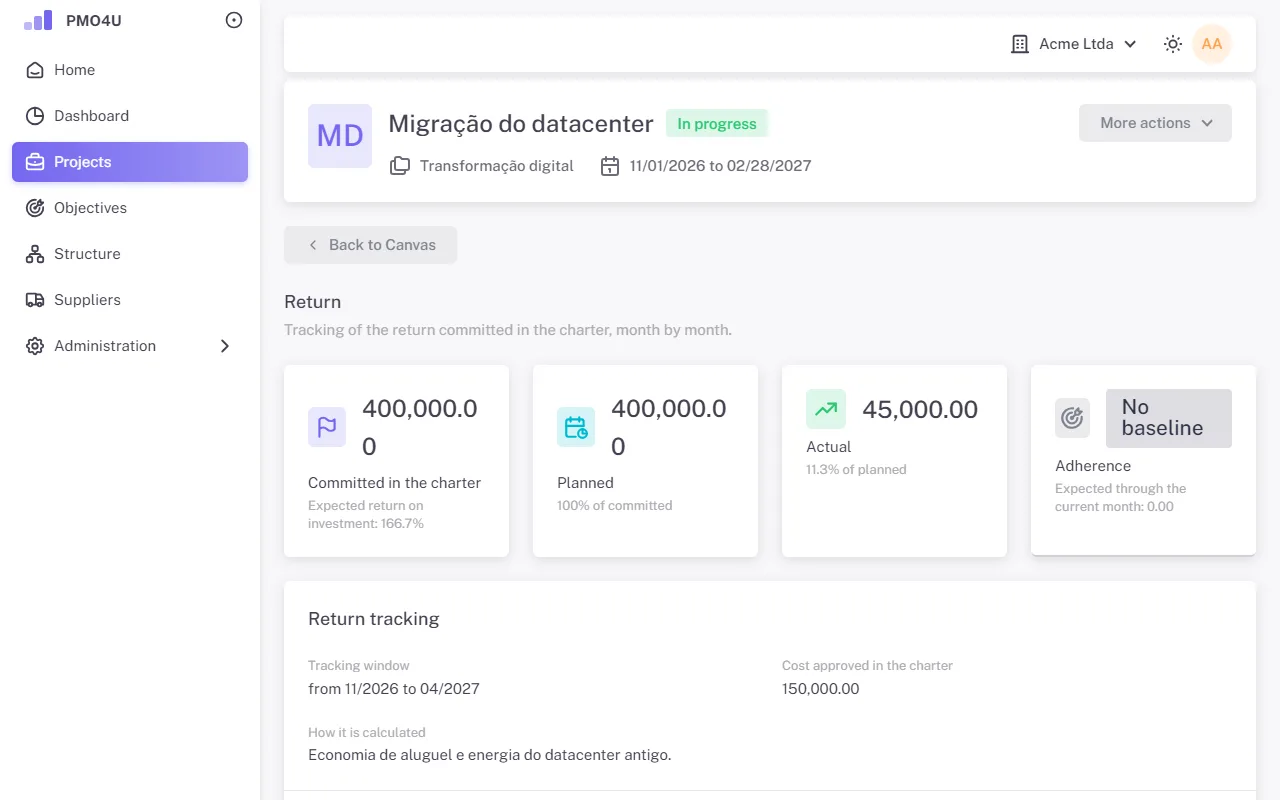
Fill in the grid with the planned and actual amounts for each month and click Save months. The cards show the committed, planned and actual amounts and the adherence.
Contribution to objectives
Here the project states how much it contributes to each of the company's strategic objectives.
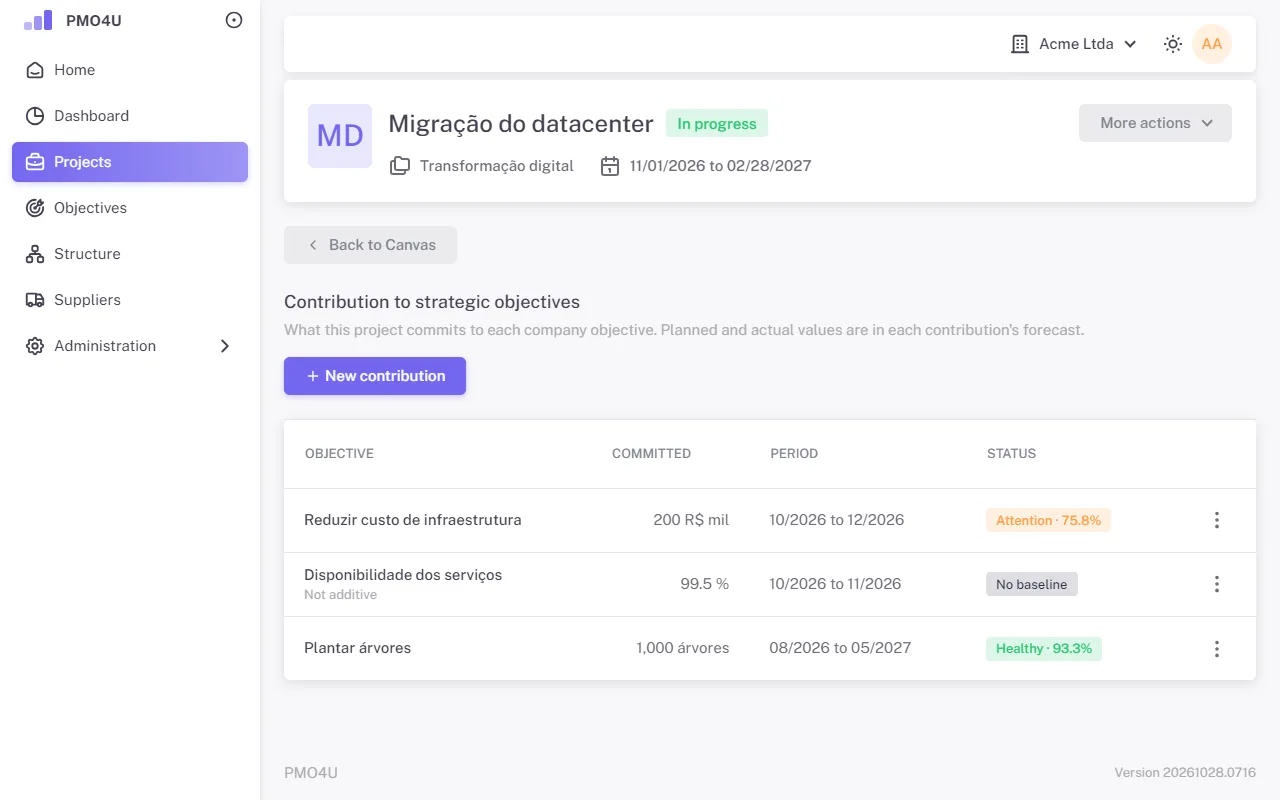
- Click New contribution, choose the objective, enter the Committed contribution and the start and end months, within the objective's period.
- In the row menu, Edit forecast opens the monthly grid of planned and actual. Save with Save.
Start, put on hold and close
The state buttons are at the top of the project page: the main one highlighted and the others in More actions.
- Start: from Approved to In progress.
- Put on hold (with a reason) and Resume.
- Close: asks for the closing summary, which is then shown at the top of the project.
- Cancel project: the manager cancels in Draft and Returned, with a reason. After approval, only the PMO cancels.
Risks, actions, deliverables, status reports, Kanban, schedule and finance can be used in any state that isn't final. Closed, Rejected and Canceled are read-only, except for entering actual and paid amounts after closure. See the full table in Project states.
Request a charter change
After approval, the charter only changes through a new version approved by the PMO.
- In More actions, click Request a charter change and enter the reason.
- Edit the new version, which is "Drafting", and click Submit change for review. Discard change drops it.
- The PMO approves or declines. Meanwhile, the current version remains in effect.
Only one change request can be open at a time.
Reports
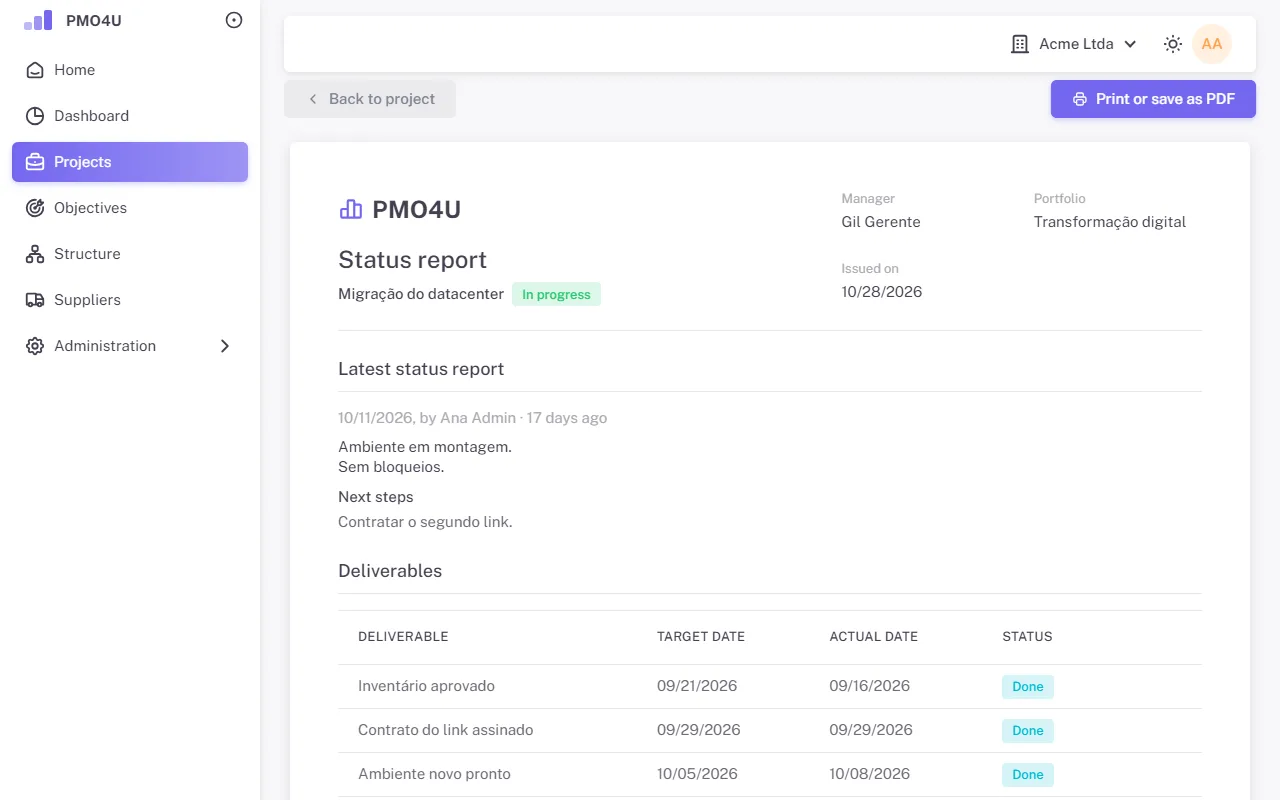
More actions has the Charter report (the current version and the history) and the Status report (the latest status report, the deliverables and the project's situation). Use Print or save as PDF: the report always comes out in light mode.
Director
The Director sees the projects in their departments in full, with risks, all actions, amounts and objectives, but doesn't change anything. The add buttons appear disabled, with the reason next to them.
Portfolio dashboard
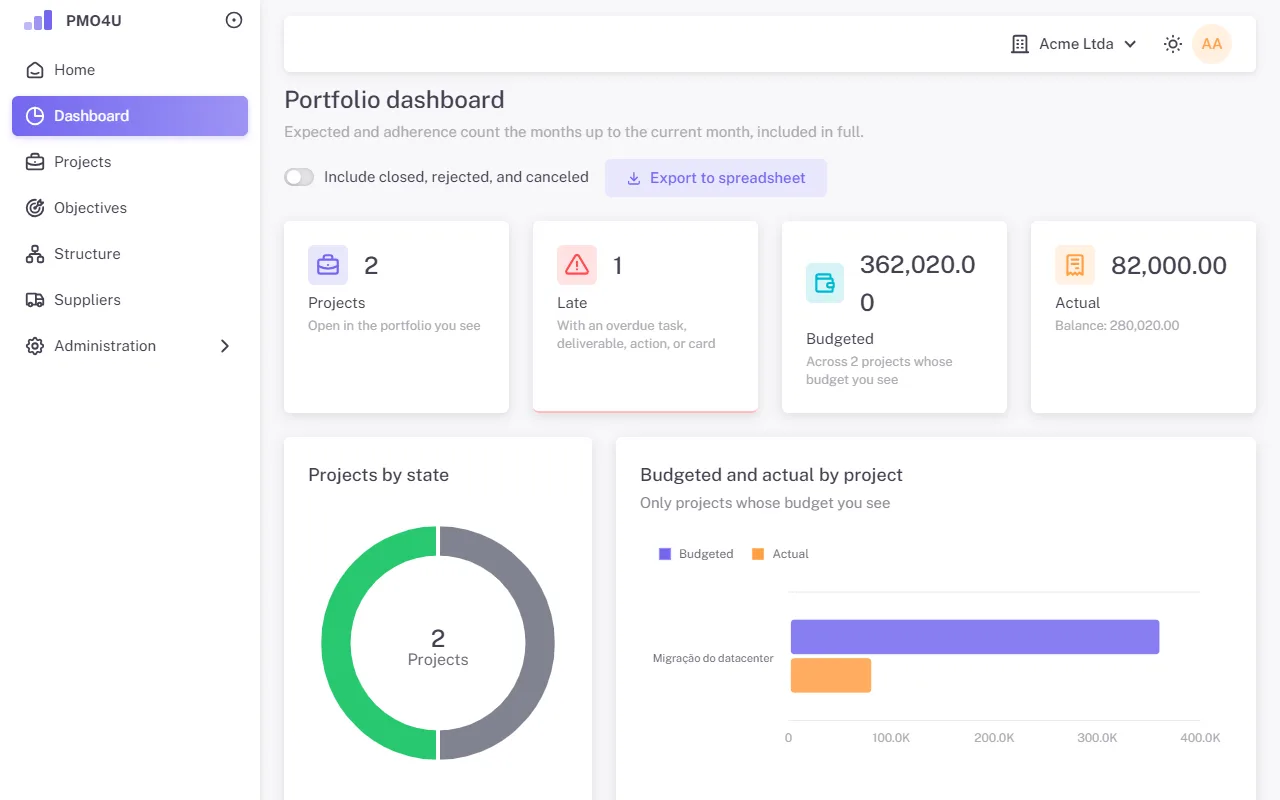
- Tiles for projects, projects with delays and, for those who see amounts, budgeted and actual.
- Charts of projects by state and of budgeted and actual by project.
- The Portfolio table, with the state, manager, schedule, delays, risks, budget, return and latest status report of each project. A blank cell is a block you can't see in that project.
- Include closed, rejected, and canceled also shows projects in final states.
- Export to spreadsheet downloads the portfolio as a CSV file.
The Dashboard is available to everyone, with the projects each person can see.
Follow a project
Open the project from the list or from the Dashboard. The Canvas summarizes everything, and each block opens the details. To take it to a meeting, use the reports in More actions. In Objectives, follow the projects' contribution to the strategy.
Finance
In the projects in their departments, Finance sees the general details, the finance and the return. They don't see risks or contributions to objectives, and of the actions they see only their own. They also maintain the suppliers.
Enter actual and paid amounts
- Open the project and click the Finance (S-curve) block.
- On the cost item, use Edit forecast.
- Fill in the Actual and Paid rows for the months and click Save.
Planning the items is up to the manager and the PMO. Entries remain open after the project is closed, but not in a rejected or canceled project. When the cumulative paid amount exceeds the actual, the page warns you.
Actual return
In the project's Return, Finance also enters the actual amount for each month. The planned amount is up to the manager and the PMO.
Resource
Every member is a Resource. In the projects you take part in, you see the general details, the charter, the participants, the deliverables, the status reports, the Kanban and the schedule. Risks and amounts stay with the project's leadership.
My activities
Home shows everything assigned to you, across all projects:
- My actions: change the Progress right there, or open the project. The situation shows whether the action is on time, due today or late.
- My cards: on the project's Kanban, move your card between lists and check off the checklist.
- My tasks: enter the Percent for each schedule task you are assigned to.
In Profile, check the option to get a daily email summary of your overdue items.
Reference
Project states
| From | To | Button | Who | Reason |
|---|---|---|---|---|
| Draft, Returned | In review | Submit for review | Manager or PMO | No; the charter must be complete |
| In review | Approved | Approve | PMO who is not the manager | No |
| In review | Returned | Return | PMO who is not the manager | Yes |
| In review | Rejected | Reject | PMO who is not the manager | Yes |
| Approved | In progress | Start | Manager or PMO | No |
| In progress | On hold | Put on hold | Manager or PMO | Yes |
| On hold | In progress | Resume | Manager or PMO | No |
| In progress | Closed | Close | Manager or PMO | Closing summary |
| Draft, Returned | Canceled | Cancel project | Manager or PMO | Yes |
| Approved, In progress, On hold | Canceled | Cancel project | PMO only | Yes |
Closed, Rejected and Canceled are final states. Every state change is recorded in the project history, on the charter screen, and in the audit log.
Severity
For a risk, severity is probability times impact, each from 1 (Low) to 3 (High): 9 is High, 3 to 8 is Medium, and 1 or 2 is Low. For an issue, which has already happened, only the impact counts. The colors are yellow (Low), orange (Medium) and red (High).
Situations and due dates
Today's date follows the company's time zone.
- Action: Done or Canceled; otherwise Late (due date has passed), Attention (due today) or On time.
- Deliverable: Done, Canceled, Not started, Not started, late (past the baseline without starting), On time or Late. The comparison date is the replanned date, or the baseline when there is no replanning.
- Card: Done (in a list with the Done stage), No due date, Late, Due today or On time.
- Task: Done, Late, Ends today, In progress or Not started.
Adherence traffic light
Adherence is the actual through the current month divided by the expected through the current month. It applies to return, objectives and contributions.
| Color | Situation | Adherence |
|---|---|---|
| Blue | Ahead | above 100% |
| Green | Healthy | 80% to 100% |
| Yellow | Attention | 40% to 79.9% |
| Red | Critical | below 40% |
| Gray | No baseline | nothing planned up to the current month |